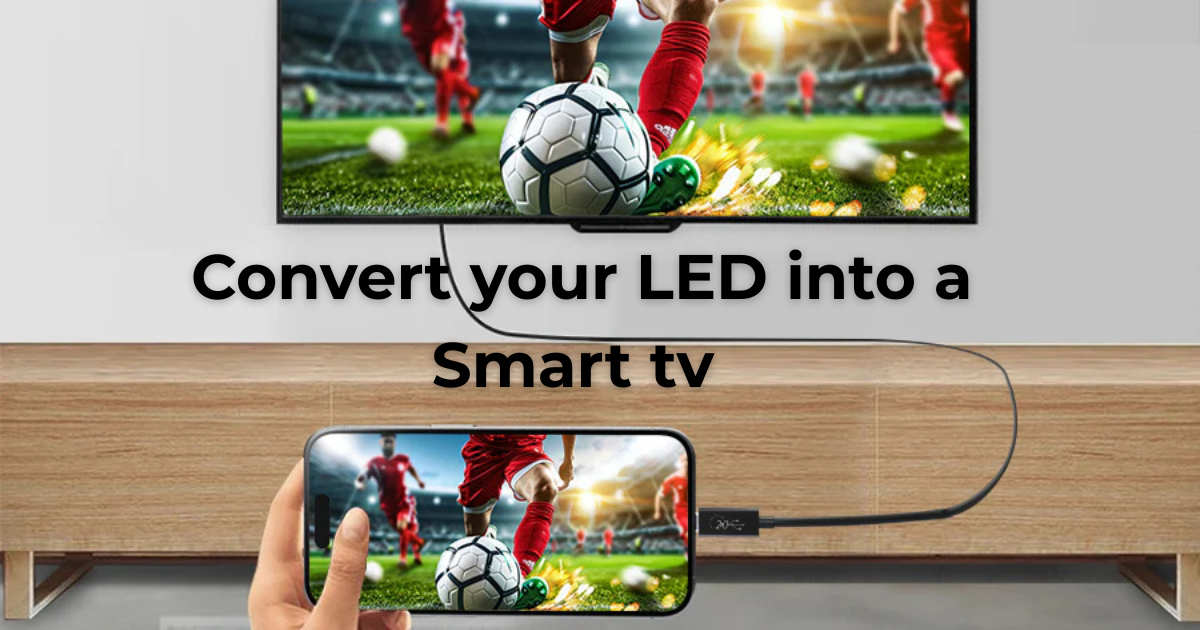
If you have a simple LED TV that does not have built-in Android features, you may think that upgrading to a Smart TV requires buying an expensive new television. Fortunately, that is not always the case. With the right connection method, you can use your smartphone to display its content on a larger TV screen.
This method can be useful for watching videos, viewing photos, browsing websites, playing supported games, or presenting content from your phone on a bigger display. However, one important point should be understood: a USB charging cable alone usually cannot turn a normal TV into an Android TV or directly mirror your phone’s screen. The TV and phone must support a compatible display-output technology, or an additional adapter/device may be required.
What Does Screen Mirroring Mean?
Screen mirroring means displaying the content of your smartphone on another screen, such as an LED TV. Whatever appears on your phone can potentially appear on the television as well.
For example, if you open a video on your phone, the same video can be displayed on the TV. Similarly, photos, presentations, websites and other supported applications can be viewed on the larger screen.
This is different from actually converting a television into a full Android Smart TV. Your TV does not automatically gain Android apps, Google Play Store or an Android operating system simply by connecting a USB cable. Instead, your phone acts as the source device while the television works as the display.
Can You Connect a Mobile to an LED TV Using a USB Cable?
This is where many people become confused. A standard USB cable is primarily designed for charging and data transfer. On most phones and televisions, plugging a USB cable between the two devices will not automatically mirror the phone’s screen.
Some smartphones support video output through USB-C using technologies such as DisplayPort Alt Mode. If your phone supports this feature, a compatible USB-C-to-HDMI adapter can be used to connect the phone to an HDMI port on the TV.
Older phones with Micro-USB ports may require specialized MHL-compatible hardware, and support varies significantly between phone models.
Therefore, before purchasing an adapter, check whether your particular smartphone supports wired video output.
What You May Need
The exact equipment depends on your phone and television.
For a compatible modern smartphone, you may need:
- A smartphone with supported video output
- A USB-C-to-HDMI adapter
- An HDMI cable
- An LED TV with an HDMI input
- A suitable power source if the adapter requires additional power
If your phone does not support wired video output, a wireless screen-mirroring solution or a dedicated streaming device may be a better option.
How the Wired Method Works
If your smartphone supports USB-C video output, the process is relatively straightforward.
First, connect the USB-C end of the compatible adapter to your phone. Next, connect an HDMI cable between the adapter and an available HDMI port on your LED TV.
After connecting everything, switch the TV’s input source to the HDMI port you used. If the phone and adapter are compatible, the phone’s display may then appear on the television.
Depending on the smartphone, you may see a notification asking whether you want to enable an external display, desktop mode or screen mirroring. Follow the instructions shown on the phone.
Once the connection is active, you can use your phone normally while the television displays the supported content.
What Can You Do After Connecting Your Phone?
The possibilities depend on your phone’s hardware, software and the connection method.
You can potentially watch online videos on a much larger screen, display your personal photos and videos, browse websites, show presentations and use supported applications.
For example, instead of several people gathering around a small smartphone display, you can show the same content on a large LED screen.
Some compatible phones also provide a desktop-style interface when connected to an external display. This can make the phone feel more like a basic computer, although the experience depends on the smartphone manufacturer and software.
What If Your TV Does Not Have HDMI?
If your older LED or LCD television does not have an HDMI port, the connection becomes more complicated.
Some older televisions have VGA, AV or other inputs. In such cases, an appropriate converter may be necessary. However, not every converter works in both directions, and simply purchasing a USB-to-AV cable does not guarantee that your phone screen will appear on the television.
For this reason, checking the available ports on both devices before buying anything is extremely important.
Wireless Alternatives
If the USB method is not supported, you do not necessarily need to replace your television.
A wireless streaming or mirroring device can provide another solution. Devices such as compatible Chromecast-style streamers, Android TV/Google TV devices or other HDMI streaming adapters can add smart functionality to a regular TV.
With such a device connected to the television, you can access supported streaming services and cast compatible content from your smartphone.
This approach can actually be more convenient if your main goal is to make a traditional TV function more like a Smart TV.
Important Difference: Mirroring vs. Making a TV Smart
It is important to understand the difference between these two concepts.
Screen mirroring uses your phone as the main source. The TV simply displays what the phone sends to it.
Making a TV smart generally means adding a device or operating system that provides features such as apps, streaming services, internet connectivity and an app store.
Therefore, if someone says that a simple LED TV can become a complete Android TV simply by connecting a USB charging cable, that claim is misleading in most situations.
A USB cable can be part of a supported wired-display setup, but the cable itself does not install Android on the television.
Common Problems and Their Solutions
Sometimes the TV shows “No Signal” after everything has been connected. This may happen because the phone does not support video output, the wrong HDMI input has been selected, the adapter is incompatible, or the cable is faulty.
If the screen remains blank, first check the TV’s input source. Then reconnect the cables and restart the phone.
If the problem continues, verify the specifications of your smartphone. A USB-C port does not automatically mean that the phone supports HDMI or DisplayPort video output.
Another common problem is that the phone charges but nothing appears on the TV. This usually indicates that the cable is providing power without providing a compatible video signal.
Final Thoughts
Using a smartphone with a traditional LED TV can be an affordable way to enjoy mobile content on a much larger screen. If your phone supports wired video output, a compatible USB-C-to-HDMI setup can provide a reliable connection without requiring a new Smart TV.
However, a normal USB cable by itself generally cannot convert a conventional television into an Android Smart TV. If your phone does not support wired display output, a wireless casting solution or dedicated Android/Google TV streaming device may be a better choice.
Before buying any cable or adapter, always check the exact model of your smartphone, the ports available on your television and whether your phone supports external-display output. This small amount of preparation can save you money and prevent compatibility problems while giving your old LED TV a much more useful and modern viewing experience.